


Save an Excel spreadsheet as a PDF.
For sending a financial sheet without the formulas, or printing a budget snapshot.
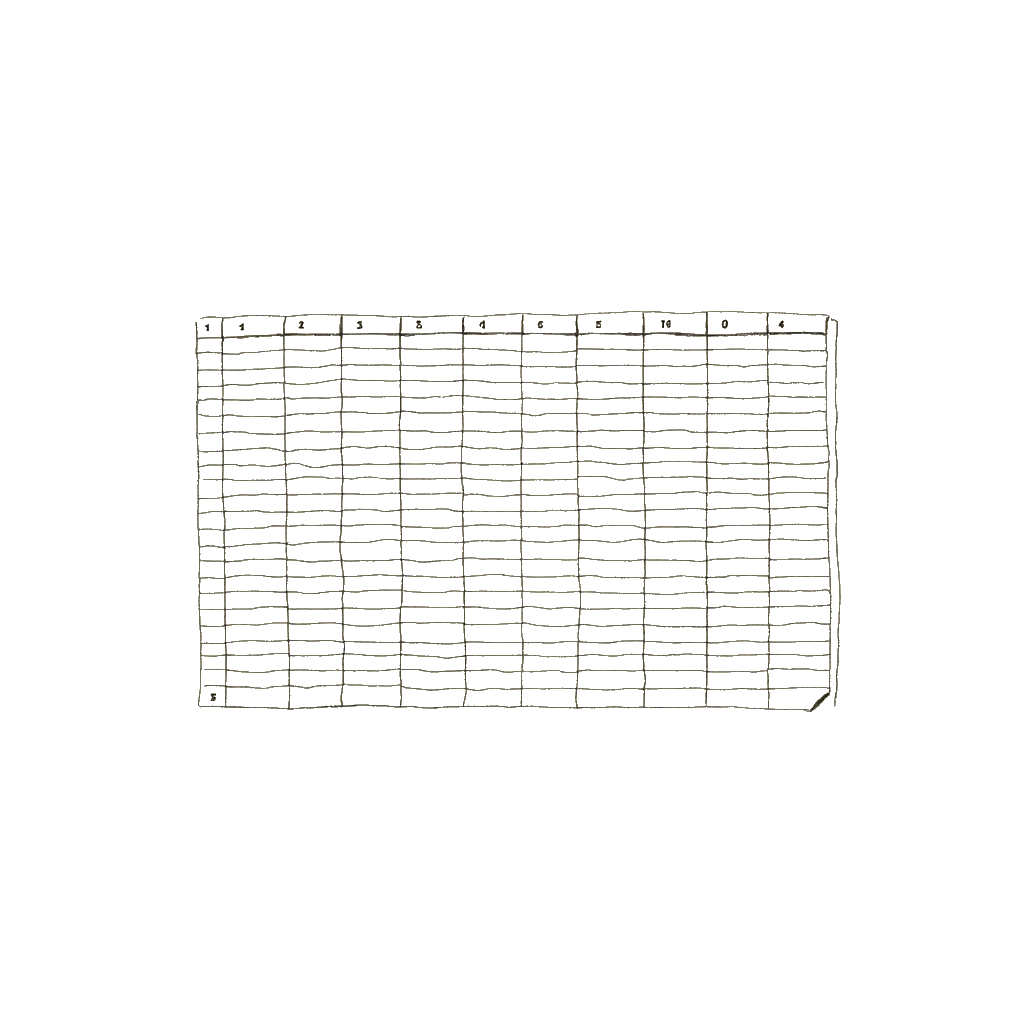
PDF the spreadsheet when the recipient needs to see the numbers but not edit them — a financial summary, a budget snapshot, a quote for a client. The PDF shows the values, not the formulas. Pick the sheet you want (the first sheet converts by default) and the page orientation; the rest is automatic. Charts carry over; very heavy formulas (long volatile chains) sometimes evaluate to their last-cached value rather than the current value.
Not sure if your file is ready? Run the free PDF size check first — same privacy pitch, runs in your browser.
or click to browse. XLSX up to 50MB.
Free with sign-in. Files deleted in 1 hour.
Three steps.
- 01Drop your XLSX or click to choose.
- 02We convert it to PDF on the worker — fast and exact.
- 03Download the result. We delete everything in an hour.
- Is my file secure?
- We never read your file. Conversion runs in an isolated container, and we delete the upload and the result within an hour.
- What's the file size limit?
- 50MB on Free · 200MB on Pro · 500MB on Max.
- What if my PDF is too large to email?
- Run the free PDF size check first — we’ll tell you whether your file fits in Gmail, Outlook, or Apple Mail, and which DocShop tool will get it there. The check runs in your browser; the file never leaves your device.
- Will the PDF show formulas or values?
- Values. Formulas are evaluated and the result is shown — a cell containing `=A1+B1` shows the sum, not the formula. The PDF represents the spreadsheet as it would print, not as it would re-open in Excel.
- Which sheet converts by default?
- The first sheet (the one visible when you open the file). If you have multiple sheets and want a specific one converted, hide the others or split the sheets into separate files first.
- Do charts carry over?
- Yes — embedded charts and conditional formatting (color scales, data bars, icon sets) render in the PDF. Sparklines render too. Pivot tables show as a static table, not an interactive pivot.
- Does the page orientation match the source?
- Yes — portrait sheets print portrait, landscape sheets print landscape. If the sheet is wider than the page, columns flow left-to-right then wrap to a new page.
- Will formatting be preserved?
- Layouts, fonts, and images come through cleanly. For signed contracts or anything going to a client, open the result once before sending — automated conversion is reliable but not perfect.
Related tools
PDF to Excel
For working with PDF tables in Excel — budgets, invoices, anything with rows and columns.
PDF → Excel
Word to PDF
For sending a Word file to someone who reads on a phone or prints at home.
Word → PDF
PDF to Word
For fixing a typo in a PDF, signing a contract you received, or re-using its content.
PDF → Word
PowerPoint to PDF
For sharing slides with people who don’t have PowerPoint, or printing handouts.
PPT → PDF